
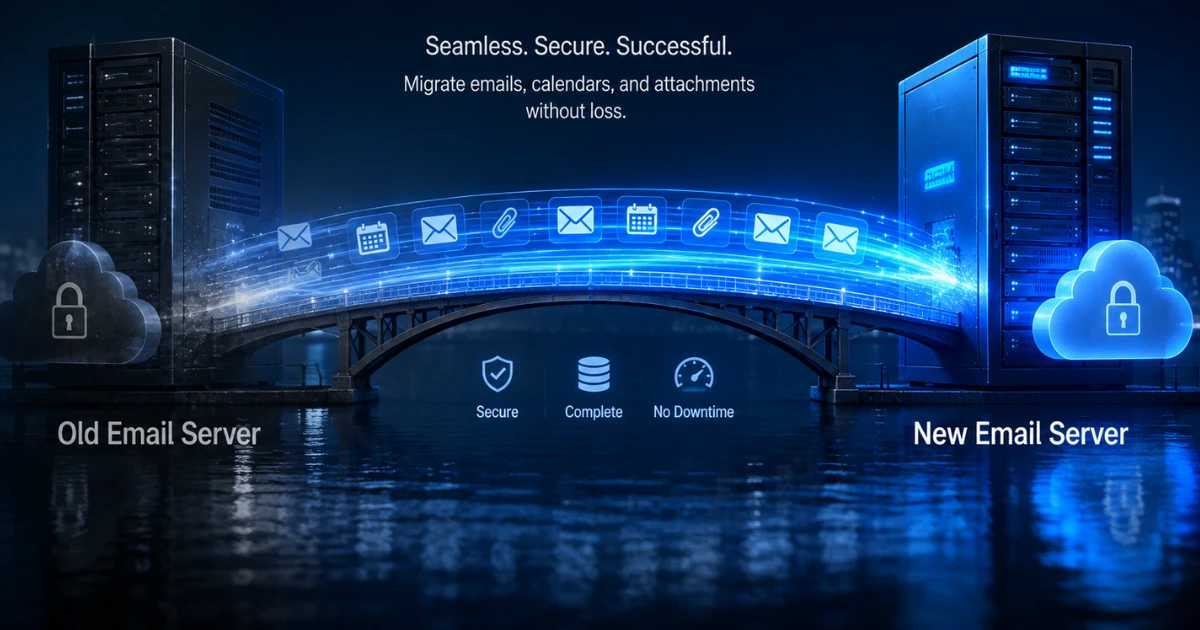
Why You Need to Migrate Business Email Carefully
The short answer? Your email is your memory. Most businesses keep their entire paper trail in their inbox. If you just cancel your old hosting before the new one is live, those files are gone forever.
A professional migration isn't just about moving on now. It's about moving the "then." You need a strategy that handles IMAP syncing or PST exports without corrupting the files. In the UAE's fast-moving market, a day of downtime or a missing contract in your inbox can cost you a deal.
The Step-By-Step to Business Email Migration Like a Pro
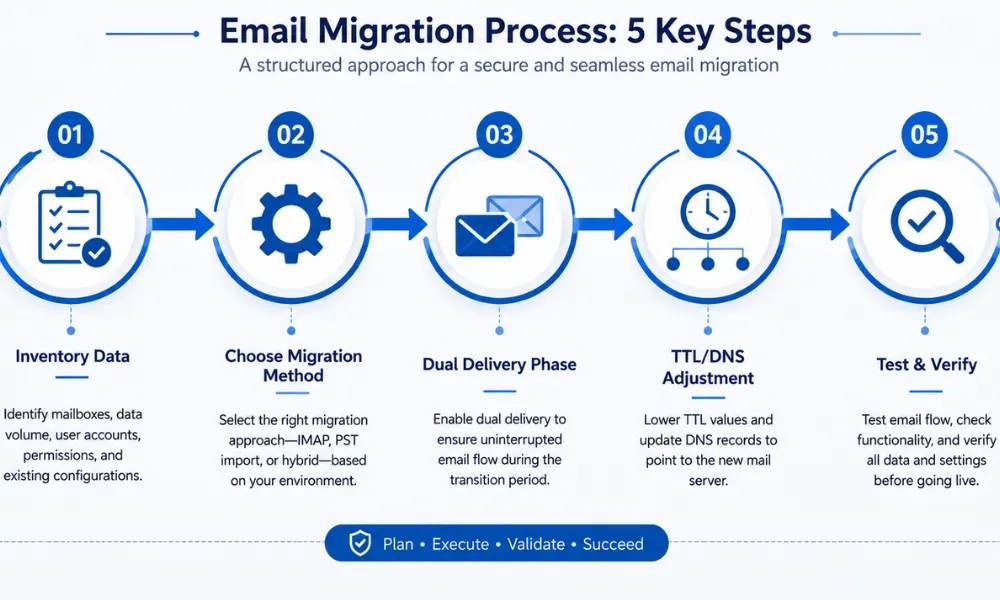
Don't just jump in. You need to follow a specific order to keep the mail flowing while the data moves in the background.
- Inventory Everything: How many accounts? How much data per user? Some legacy accounts might have 50GB of junk you don't need. Clean it up first.
- Pick Your Method: Are you using a migration tool like BitTitan, or are you doing a manual IMAP sync? For small teams, manual work. For larger UAE corporations, you need automated tools.
- The "Dual Delivery" Phase: This is a trick experts use. You set up the new server to receive mail while the old one is still active. No missed messages.
- TTL Adjustment: Lower your DNS "Time to Live" values 24 hours before the move. It makes the switch happen in minutes instead of days.
If you are feeling overwhelmed by the technical jargon, looking at professional email setup services can save you the headache.
Avoiding the "Dirty Data" Trap During Transition
Most people forget that email migration isn't just about the messages. It’s about your reputation. If your SPF, DKIM, and DMARC records aren't updated during the move, your "new" emails will land straight in the spam folder.
When you migrate your business email, you are essentially moving your digital identity. You must verify that your cloud email migration remains secure and that your email authentication protocols are ironclad on the new server. This keeps your deliverability high and your brand safe from spoofing.
Handling the Human Side of the Move
Your team will have questions. "Where are my folders?" "Why isn't my signature there?" Migration is as much about people as it is about data.
- Communication: Tell them when the "cutover" is happening.
- Signature Backups: These rarely migrate. Ask everyone to copy their signatures to a Word doc.
- Mobile Setup: Have a PDF guide ready for how to re-add the account to their iPhones or Androids.
A little preparation prevents a flood of support tickets on Monday morning.
Testing: The Most Skipped Step
Once the data is moved, don't just walk away. Send test emails. Check the "Sent" folders. Verify that calendar invites from three years ago still have the correct meeting links.
If you notice gaps, run a "delta migration." This only moves the items that arrived between your first big move and the final cutover. It’s the final sweep that ensures absolutely nothing is left behind on the old, dying server.
Final Thoughts
Moving your business to a new email home is a major milestone. It usually means you’re growing, upgrading, or getting serious about your digital infrastructure. While it feels technical, the goal is simple: continuity. Do you have a backup of your most important PST files ready just in case, or are you flying blind?
FAQ
The "switch" takes minutes. Moving the data takes hours or days depending on how much mail you have. A 10GB mailbox usually takes about 2 to 4 hours to sync fully over a decent connection.
If you use a proper IMAP migration or a professional tool, yes. The folder structure should stay identical. If you do a simple POP3 move, you might end up with one giant "inbox" mess. Avoid POP3 at all costs.
Yes. That’s the beauty of it. You keep working on the old server while the migration tool copies everything to the new one. There’s a tiny window during the DNS switch where mail might go to either place, so check both for an hour or two.
It’s a great time to do it, but you don't have to unless your new provider has stricter security rules (like requiring MFA). We always recommend a fresh, strong password for the new setup.